
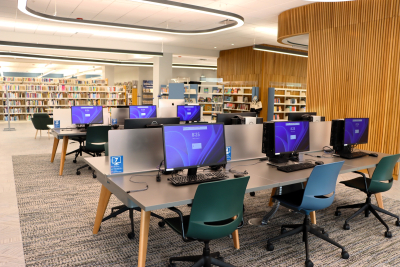
Printing and scanning stations can be found on the 2nd floor. Printing and copying is $0.10/BW and $0.25/color. Scan-to-email and fax is free.
Our new public computer space has opened on the 2nd floor!
Staff are available to assist with printing, scanning, faxing, and general computer help.
You can print documents from a library computer, your home computer, or your phone. Library computers are on the 2nd Floor. A library card is not needed to use a computer or to print, copy, scan, or fax. Printing is available for letter (8.5”x11”), legal (8.5”x14”), and tabloid (11”x17”) sizes.
Printers accept cash, credit cards, and mobile pay.
- Black & White: $0.10/page
- Color: $0.25/page
Upload a File to Print
Click Print Now to print a document saved to your computer or phone.
- Support file types: .pdf, .jpg, .jpeg, .png, .gif, .bmp, .tif, .tiff, .doc, .docx, .ppt, .pptx, .xls, .xlsx, .html, .htm, .txt, .rtf, .pub, .odt, .odp, .ods, .xps
- Enter User Information
- Guest Name / Card Number: Whatever you type in this field is what you will enter at the print release station to access your print job.
- Email: Enter your email address if you would like to receive confirmation that your print request was submitted successfully.
- Click “Continue”
- Select “Click to upload or drag and drop file”
After you choose a file, its print options will appear. You may adjust:- Number of Copies
- Color Options: Grayscale or Color
- Duplex: One-sided or Two-sided
- Paper Size: Letter (8.5" × 11"), Legal (8.5" × 14"), or Tabloid (11" × 17")
- Layout: As saved, Portrait, or Landscape
- Page Range: Print all pages or a specific range (e.g., pages 5–12)
- Add or Remove Files (Optional)
- To add more files, select “Click to upload or drag and drop file”. Each added document will have its own set of print options under “Edit”.
- To remove a document, you no longer wish to print click “Remove”.
- Review Total Cost
Your total printing cost will appear at the bottom of the page. - Submit Your Print Job
Click “Submit” to send your documents to the library printer. - Release and Pay for Your Prints
At any library print release station:- Enter the name or card number you provided in the first step.
- Select the print job(s) you want to release.
- Pay using coins, bills, or a credit card.
If you need assistance, please ask a library staff member.
Additional Notes
- Click on "Select Language" on the top right of the web page to translate the page text to 1 of over 100 language options.
- Click on the blue accessibility icon to open the Accessibility Menu which will allow you to change text or cursor size, turn on the screen reader, and more.
Print an Attachment from Email
Forward the email attachment to:
- Black and White: bw-addisonlibrary@eprintitsaas.com
- Color: color-addisonlibrary@eprintitsaas.com
A print release code will be sent to your email. At the payment station, enter the code you received. Once payment is complete, your document will print. At least two jobs will appear, one for the attached file and the other for the email. Please confirm your attachments are correct before printing.
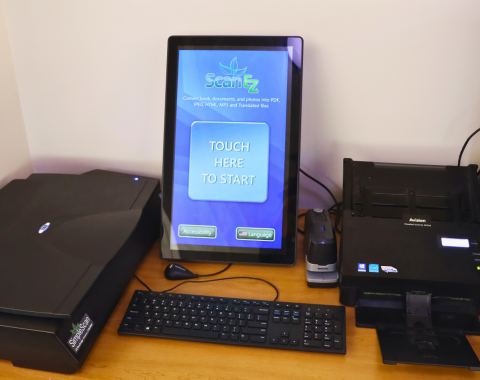
Our library has a ScanEZ stations that can be used for scanning, copying, and faxing near the Tech Help Desk (2nd Floor). There is a 15-minute limit when others are waiting.
There are two types of scanners:
- Flatbed book scanner: used to scan book pages, ID cards, and items up to 11x17 inches
- Duplex document scanner (with document feeder): to quickly scan documents.
Scan
Popular free options:
- Scan to Email
- Scan to USB
- Scan to Google Drive
Copy
- Black & white: 10¢ per page
- Color: 25¢ per page
Fax
Faxing is free to domestic and international numbers.