
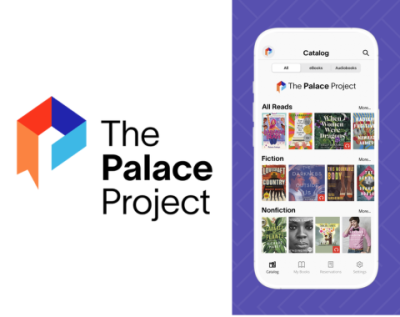
The Addison Public Library has a new app called The Palace Project to use for reading eBooks and listening to eAudiobooks. This takes the place of the Boundless app and will include the collection of digital materials that was hosted on Boundless.
To use it, first download the app The Palace Project through your device’s app store.
We recommend choosing to allow notifications for this app, since this is how it will notify you that holds are ready to check out.
Below we'll go through a simple overview of how to use the app. You can also view screenshots from the app at the bottom of the page.
Using The Palace Project App
Swipe through the “Getting Started with Palace” steps or tap the “X” in the top right to close the window. Then choose Addison Public Library from the list of libraries.
Once you’re on the APL home screen (figure 1), you’ll see various categories of books you can browse. You also can tap the magnifying glass icon to search for a book using the title, author, or keywords.
If the book is available, tap the “Borrow” button (figure 2). You’ll then be asked to enter your barcode and PIN for your library card. If the book is checked out, tap the “Place Hold” button. Once you’ve borrowed the book, you’ll have the option to read it or return it early.
You can see any books you currently have checked out by tapping the “My Books” tab at the bottom of the screen.
Within a book you’re reading, tap in the middle to show a menu at the top of the screen (figure 3). Use the magnifying glass icon to search within the book. The next icon shows the Table of Contents and any bookmarks you’ve placed in the book. The TT icon allows you to change the font, background color, font size, and brightness. The final icon allows you to place bookmarks in the book.
You also can highlight by selecting text, which brings up a menu where you can choose to highlight.
Audiobooks (figure 4) allow you to view the Table of Contents and bookmarks at the top right of the screen, skip forward or backward by 30 seconds, change the playback speed, set a sleep timer, and place bookmarks.
Another tab at the bottom of the screen is “Reservations”, which is another term for holds, and shows any books you currently have on hold. Once you receive a push notification that a book is available, you have two days to check it out.
The “Settings” tab provides the option to log in with a library card and PIN at any time.
Happy reading and listening with The Palace Project!
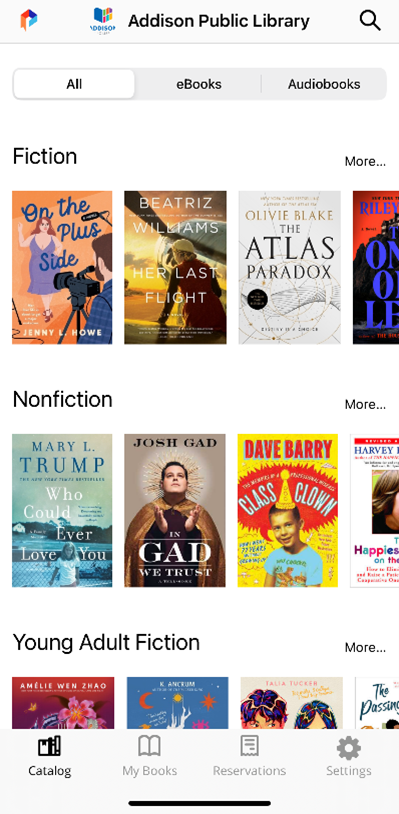
Figure 1: The Palace Project app Addison Public Library home screen
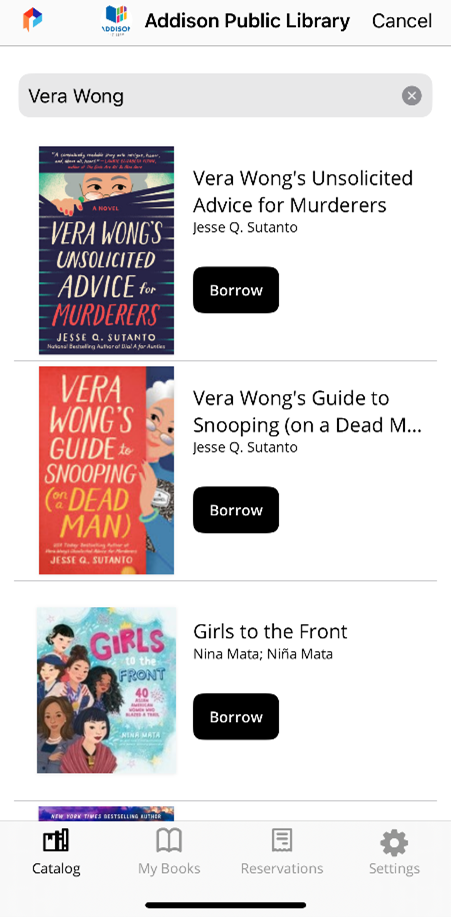
Figure 2: If a book is available, tap the "Borrow" button.
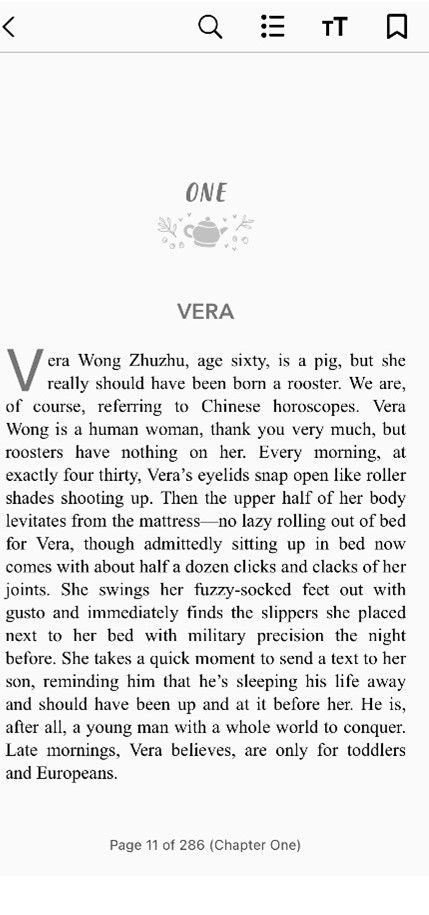
Figure 3: When reading an eBook, access the menu at the top of the screen for search, font, and bookmark options.
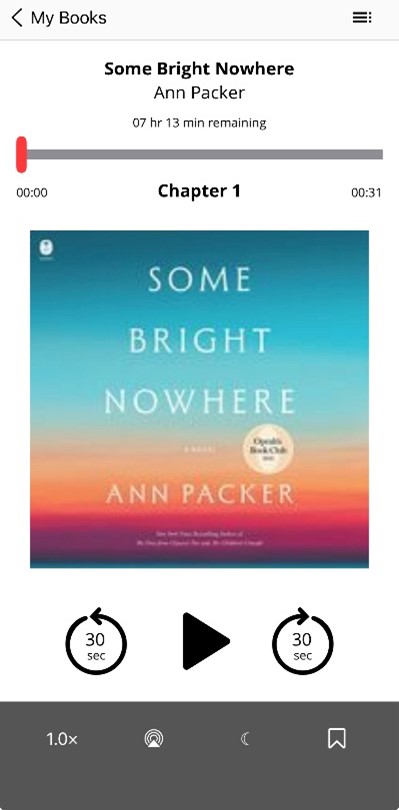
Figure 4: When playing an audiobook, access the table of contents, bookmarks, and playback options on the screen.
If you need help accessing any of our services, call us, visit one of our service desks, or chat us and we’ll be happy to help! You also can schedule a 1-on-1 appointment with one of our staff members: addisonlibrary.org/appointments.